

Getting started
Import your manuscript
Bring in a Word document, Markdown or plain-text file and check how it splits into chapters and scenes before anything is saved.
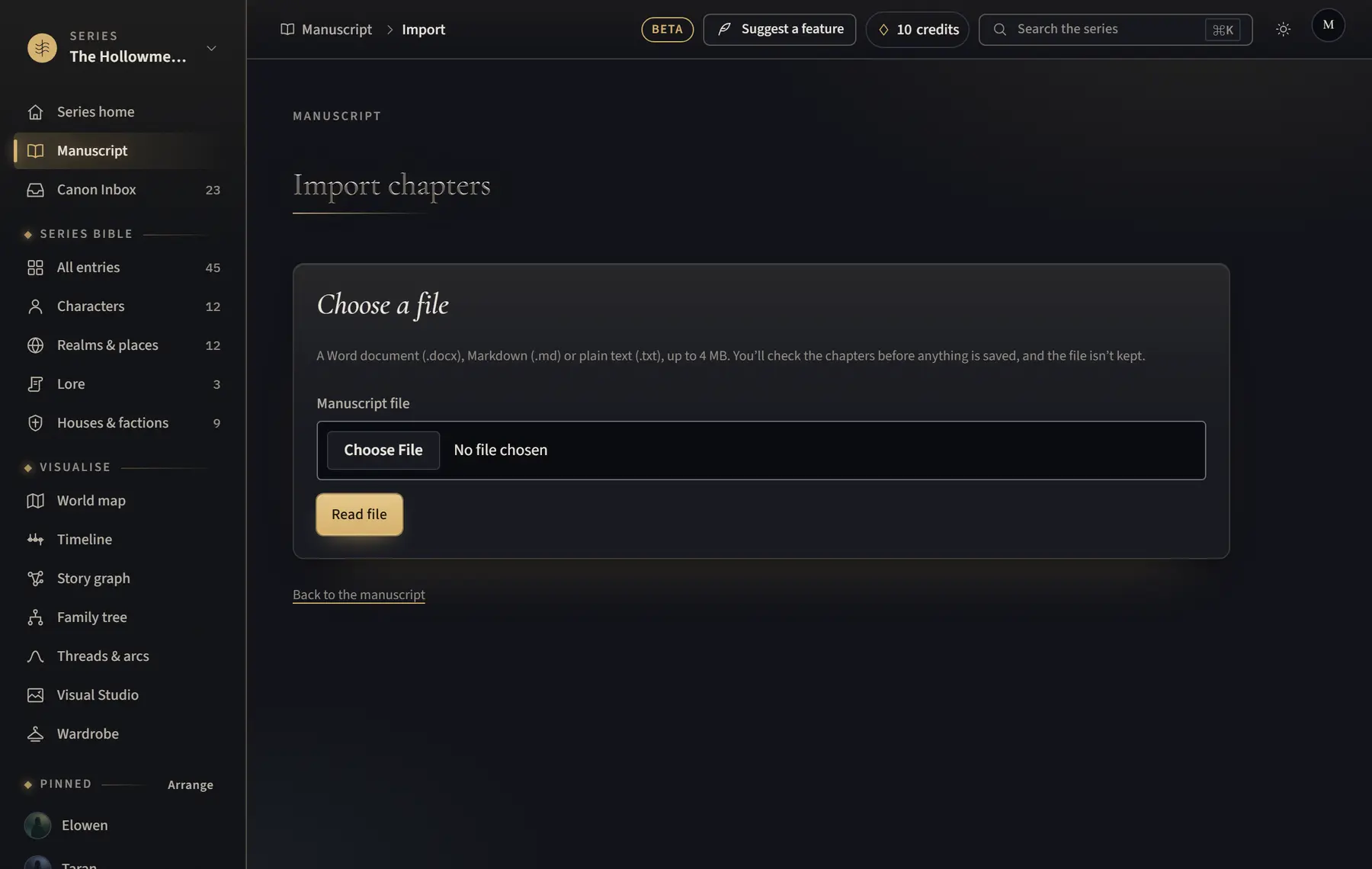
- Open Manuscript and click Import chapters under the chapter list (on a tablet, click Chapters first). In a new series with nothing written yet, Import a manuscript is also on your series home.
- Under Manuscript file, choose a .docx, .md or .txt file of up to 4 MB, then click Read file.
- Check the chapters it found. Untick Import this chapter to leave one out, use Merge into the chapter above to join a chapter that was split in two, and change any title.
- Under Where it goes, choose the Book and check Starting at chapter, or choose A new book… and type its New book title.
- Click Import with the number of chapters, for example Import 24 chapters.
- Click the button that opens the first chapter you imported, for example Open Chapter 1. If AI is on, you can click Start the first read of Book 1 instead to have AI suggest entries.
Good to know
- Chapters start at headings (Word heading styles, or # in Markdown) or at lines such as “Chapter Twelve”, “CHAPTER 12: The Ferry”, “XII” or “12.”. If none are found, the whole file becomes one chapter: add a heading such as “Chapter 2” where each one starts and import again.
- A new scene starts at a line on its own with ⁂, * * *, ---, # or ~, and at a smaller heading inside a chapter. Italics in Word and Markdown files are kept.
- For a half-written book: empty chapter headings keep their place so the numbers stay right, an import never replaces text you already have, and it starts after your last written chapter. A contents list and back matter such as acknowledgements are left out to begin with; tick them if you want them.
Related
All help · Still stuck? Write to support@sagastudio.ink.