

Reading with AI
Read the whole book with AI
AI reads every chapter with text, one at a time, and lists the entries it suggests so you can approve them together.
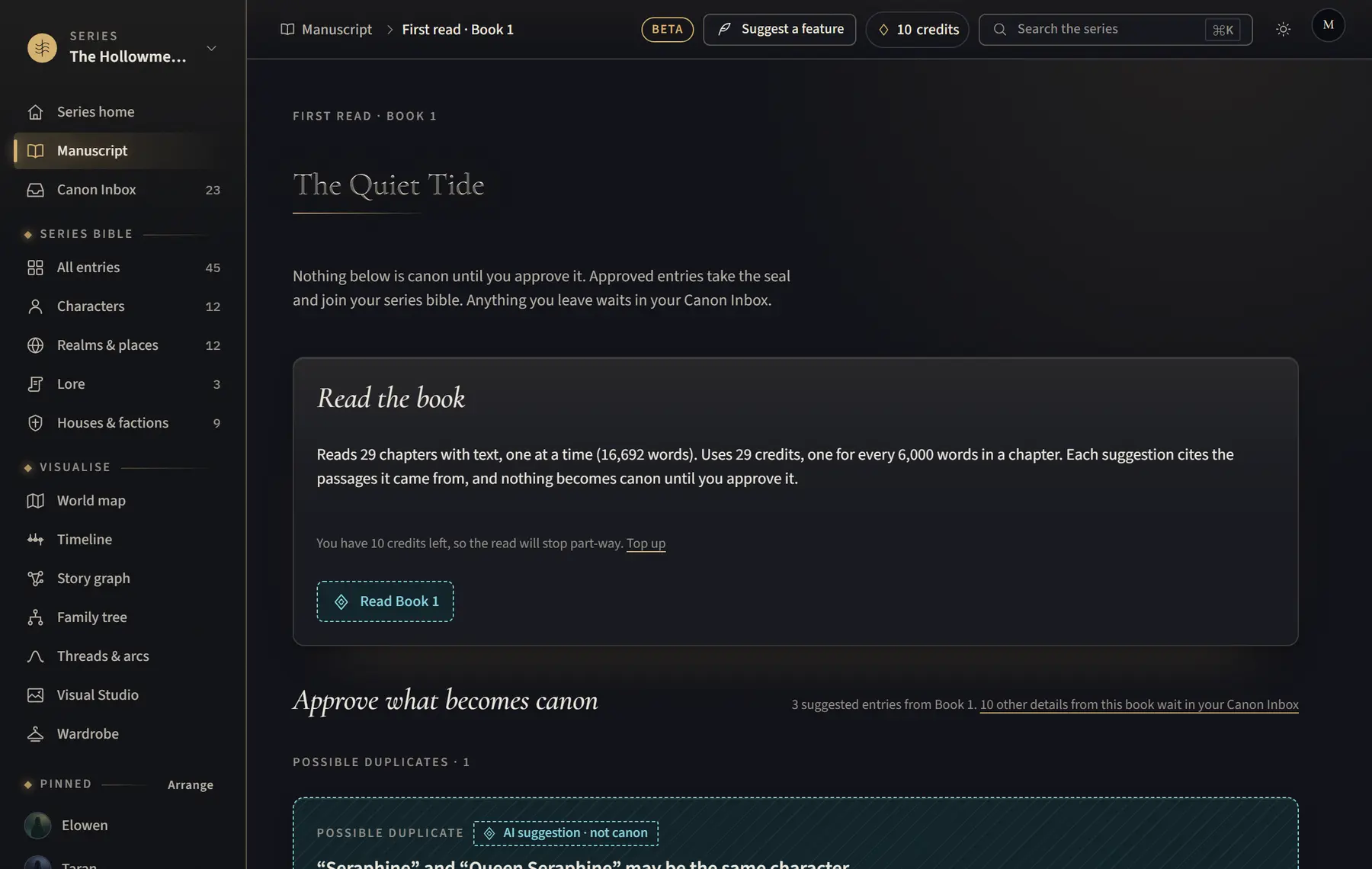
- Open any chapter of the book and click Read the whole book above the text, or click Read the whole of Book 1 under the chapter list.
- On the first read page, check how many chapters, words and credits it will use, then click Read Book 1.
- Wait while it reads. You can click Pause reading at any time.
- Under Approve what becomes canon, tick the entries you want and click Approve selected as canon, or use Approve, Edit, Merge into… and Reject on each one.
- Click Finish and open your series, or Review later in Canon Inbox.
Good to know
- Only chapters with text are read, so a half-written book can be read now and again later. Right after a read the button says Read the whole book again, and on a later visit Read Book 1; both read every chapter with text again and use credits again. To read only new chapters, use Ask AI to read this chapter on each.
- If it stops part-way, click Read the … chapters left; if a chapter fails, click Retry. Under Possible duplicates, choose Merge into …, Keep both or Decide later.
- The buttons aren’t shown while you view canon at an earlier point, if AI is off, or if the book is Excluded from AI in AI permissions. The demo doesn’t read.
Related
All help · Still stuck? Write to support@sagastudio.ink.